Reset instructions
Many standing desk issues can be fixed with a reset. Try it first before suspecting a fault in the control box or handset.
The control box keeps track of the height of each lifting column so the desk stays level. If the power is cut during movement or a plug comes loose, this information can get mixed up. The desk is not broken, but it needs a reset.
A reset will likely help if
- the desk only moves down
- the desk stops in the middle of a movement
- the display shows RST or a flashing code
- the desk is tilted to one side.
These instructions work for most Jiecang control systems. Before you start, make sure there is nothing under the desk. If your handset has no display, follow the movement of the desk instead of the RST message.
- Press and hold the down button on the handset until the desk reaches its lowest position. It may take up to 30 seconds before the desk starts to move.
- Release the button for a couple of seconds, then press the down button again. If your handset has a display, it will show RST. The desk is now in reset mode.
- Wait a couple of seconds. Then press and hold the down button until the desk moves down slightly and back up a little. When the movement stops, release the button.
Your desk is now reset. A reset usually takes less than two minutes and can be repeated if needed.
Important: If the desk tilts during the reset, release the button immediately. Contact us →
f the reset does not help, the cause is likely in the hardware. It may be a loose motor cable, a faulty control box or handset, or a fault in a lifting column.
- Check that the power cord and all cables are firmly connected.
- Try the reset again.
- If the problem continues, tell us about the issue and your handset model, if you know it. Contact us →
Tip: Avoid cutting the power during movement, keep cables secured and spread the weight evenly on the desk.
Common issues
Open a topic to see the most common solutions.
Possible cause: Power supply, a loose cable or a control box fault.
Try this:
- Check that the socket has power and that the power cord is firmly connected to both the socket and the control box.
- Check the handset and motor cables.
- Unplug the power cord for at least 30 seconds and plug it back in.
- Reset the desk (see Reset instructions above).
- If the desk has been adjusted continuously for more than 2 minutes, the overheating protection may stop it. Let the desk rest for about 18 minutes and try again.
If the desk still does not move: Contact us→
Possible cause: The control box has lost track of the desk height, often after a power cut or a loose plug.
Try this:
- Reset the desk (see Reset instructions above).
- Check that there is not too much weight on the desk and that nothing is blocking the movement.
If the problem continues: Contact us →
Find the meaning of the code and the solution under Display messages and error codes below. If the code is not listed, tell us the code and your handset model.
Possible cause: Memory positions may be cleared after a reset or a power cut, or the position was not saved correctly.
Try this:
- Move the desk to the height you want..
- Save the height to a memory position again. The saving method depends on the handset, so check it in the user manual.
Possible cause: The lifting columns are out of sync, the load is unevenly distributed or the floor is uneven.
Try this:
- Reset the desk (see Reset instructions above).
- Spread the weight evenly on the desk.
- Check the levelling feet and that the frame screws are tight.
If the desk is still tilted: Contact us →
Possible cause: The anti-collision system has detected an obstacle or too much resistance.
Try this:
- Remove anything under or next to the desk that may block the movement, including cables and chair armrests.
- Check that there is not too much weight on the desk.
- Check that the control box is firmly attached under the desk. If it is, the anti-collision may be too sensitive. Sensitivity adjustment: see Display messages and error codes.
If the problem continues: Contact us →
Possible cause: The handset cable is loose, there is no power or the handset is faulty.
Try this:
- Check that the handset cable is firmly connected to the control box.
- Check the power cord and the socket.
- Unplug the power cord for at least 30 seconds and plug it back in.
If the display stays blank: Contact us →
Display messages and error codes
Find the message shown on your display. These instructions apply to Jiecang handsets with a display. Functions may vary by model.
The desk is in reset mode. Reset the desk (see Reset instructions above).
Hold the M button for about 8 seconds until numbers appear on the display. The handset is now unlocked.
Unlocking may vary by handset model. For example, on the Perus2 desk handset, the lock is released with a button on the underside of the handset. Watch the video on the Perus2 handset child lock →
The desk has been adjusted continuously for too long (more than 2 minutes), or the control box has heated up, for example in a warm room. Let the desk rest for about 18 minutes, and it will recover on its own.
A control box port (E01 = M1, E02 = M2 and so on) has triggered the overcurrent protection, and the desk does not move. This can be caused by overload when raising the desk, a lifting column that keeps trying to move after reaching its top or bottom position, or a mechanical or electrical fault.
- Check that there is not too much weight on the desk and that nothing is blocking the movement.
- Reset the desk.
Important: If the desk tilts during the reset, release the button immediately. Contact us→
The error codes indicate a signal error in the control box port M1 or M2 (see the image below). On some control box models, the ports are on different sides of the control box.
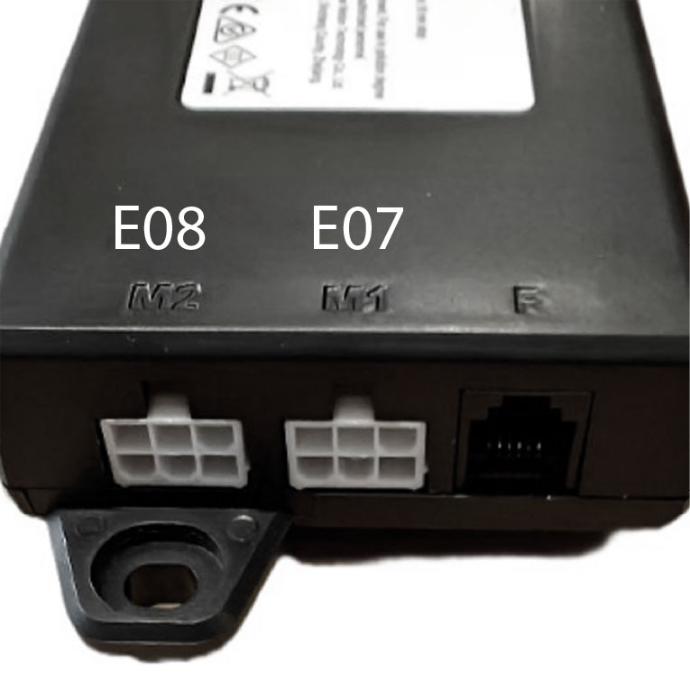
Step 1. Reset the desk and try adjusting the height.
The error code does not return → The desk works again, and no further action is needed. If the code returns later, start from the beginning.
The error code returns → Continue to step 2.
Step 2. Unplug the power cord. Swap the cables coming from the lifting columns between ports M1 and M2. Plug the power back in and reset the desk again.
- The error code does not change → The control box port is faulty.
- The error code changes → Continue to step 3.
Step 3. Is there an extension cable like the one in the image between the lifting column and the control box?
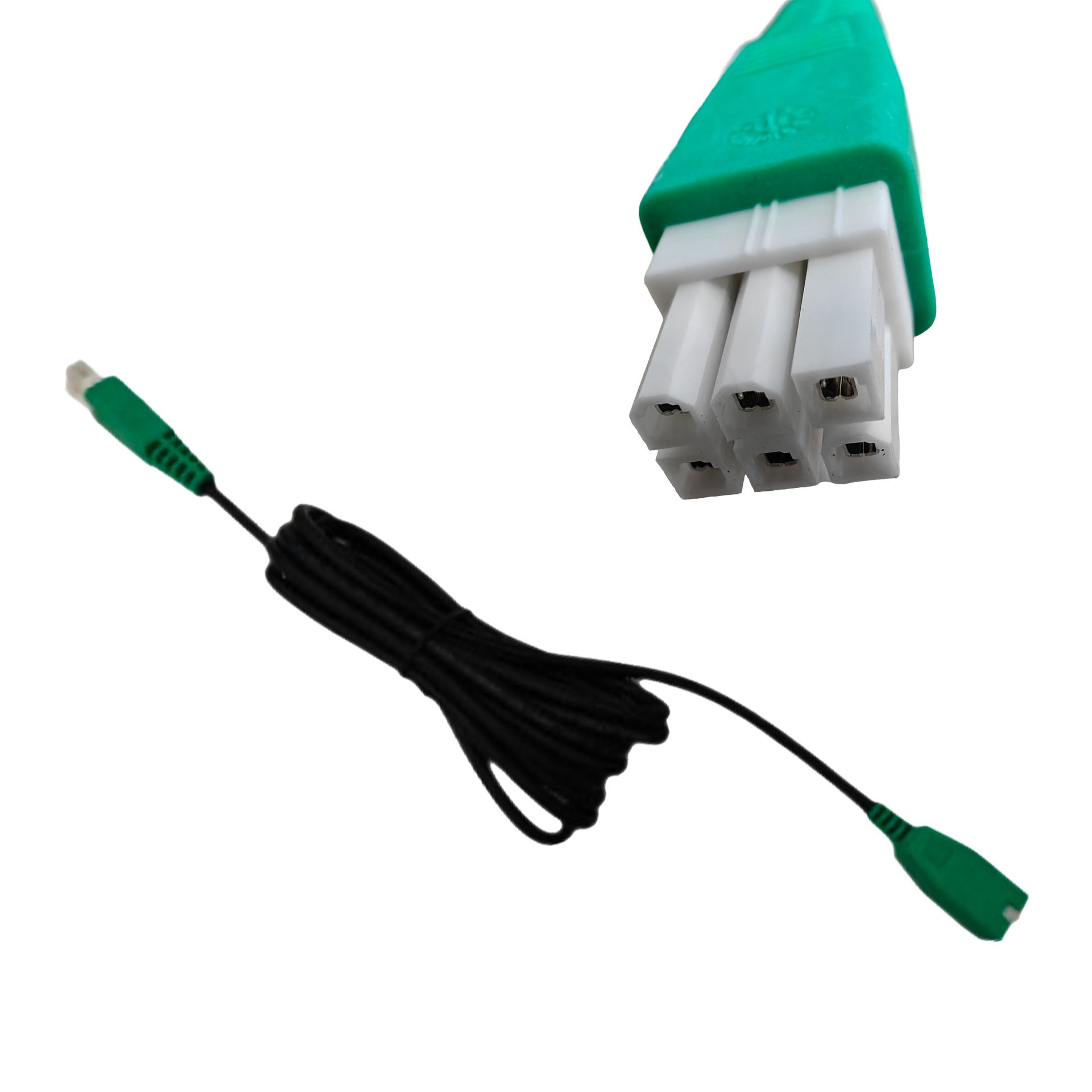
- No → The motor inside the lifting column is faulty.
- Yes → The extension cable is faulty.
Step 4. Unplug the power cord. Move the extension cable between the other lifting column and the control box. Do not swap the lifting column cables, only move the extension cable. Plug the power back in and reset the desk again. Does the error code change again?
- No → The motor inside the lifting column is faulty.
- Yes → The extension cable is faulty.
Once you know which part is faulty, we’ll help you find the right spare part. Contact us→
Note. Some models may show error code E09. It is the same fault as E07 and E08, but in port M3.
Applies to desks with two connected control boxes.
- Check the cable between the control boxes.
- Unplug the power cord for at least 30 seconds, plug it back in and reset the desk.
If the code does not disappear, one of the control boxes may be faulty: Contact us →
The handset is likely faulty and needs to be replaced. Contact us →
A height limit has been set for the desk.
- Press the M button. Release the button for a couple of seconds.
- Hold the M button again until the display shows 555.
The limit has now been removed.
- Follow steps 1–2 of the reset (see Reset instructions above) until the display shows RST.
- Hold the M button for 5 seconds until the height reading flashes.
- Set the correct reading with the up and down buttons.
When you release the button, the display returns to RST mode after 5 seconds and the setting is saved. Then complete step 3 of the reset.
- Follow steps 1–2 of the reset (see Reset instructions above) until the display shows RST.
- Hold memory button 2 for 5 seconds.
- Select 10.3 (centimetres) or 10.4 (inches) with the up and down buttons.
- Then complete step 3 of the reset.
- Follow steps 1–2 of the reset (see Reset instructions above) until the display shows RST.
- Hold the up button for 5 seconds.
- Select 10.5 (very sensitive), 10.6 (medium) or 10.7 (less sensitive) with the up and down buttons.
- Then complete step 3 of the reset.
Standing desk troubleshooting
In this short video (3 min), we show you how to reset your desk and solve the most common issues: RST on the display, a locked handset, a desk that rises only slightly and then returns, and error codes E08 and H01. You’ll find more detailed and up-to-date instructions in the sections above.
Ask the AI assistant
Jiecang’s AI assistant answers technical questions about standing desks at any time.
The assistant is a Jiecang service. For warranty and returns, please contact us.

Need help?
Contact our technical support team.